Intelligence
Dashboard Guide
The ASYNC dashboard is your engineering intelligence hub. It surfaces sprint health, cross-tool insights, AI-generated standups, and proactive alerts — all from a single Jira global page.
Header & Navigation
The dashboard header provides branded navigation, action buttons, and contextual information. It adapts based on your access level and the currently selected tab.

Tabs
The dashboard has two top-level tabs, visible when you have Strategic Pulse access:
- Engineering Pulse (default) — Sprint health, personal intelligence, and team metrics. Available to all users.
- Strategic Pulse — Cross-team patterns, trends, and organizational intelligence. Restricted to authorized users.
Action Buttons
The right side of the header contains context-aware action buttons (left to right):
| Button | Action | When Visible |
|---|---|---|
| Standup | Opens ASYNC Copilot in the Rovo sidebar with an AI-generated standup summary | Engineering Pulse tab, when not refreshing |
| Retro | Opens ASYNC Copilot with a sprint retrospective prompt | Within 1 day of sprint end (or past end date) |
| Reload | Refreshes all dashboard data from the backend | Always (shows spinner while loading) |
| Copilot | Opens the ASYNC Copilot AI assistant in the Rovo sidebar | Always |
| Handoff | Dropdown with "Submit Handoff" (trigger sync) and "My Handoff History" | Always (primary button, far right) |
Info Bar
Below the header, a subtle info bar displays the last updated timestamp (e.g., "Last updated: 5m ago") and, on the Strategic Pulse tab, an RBAC: Access Level badge confirming your authorization level.
Sprint Context
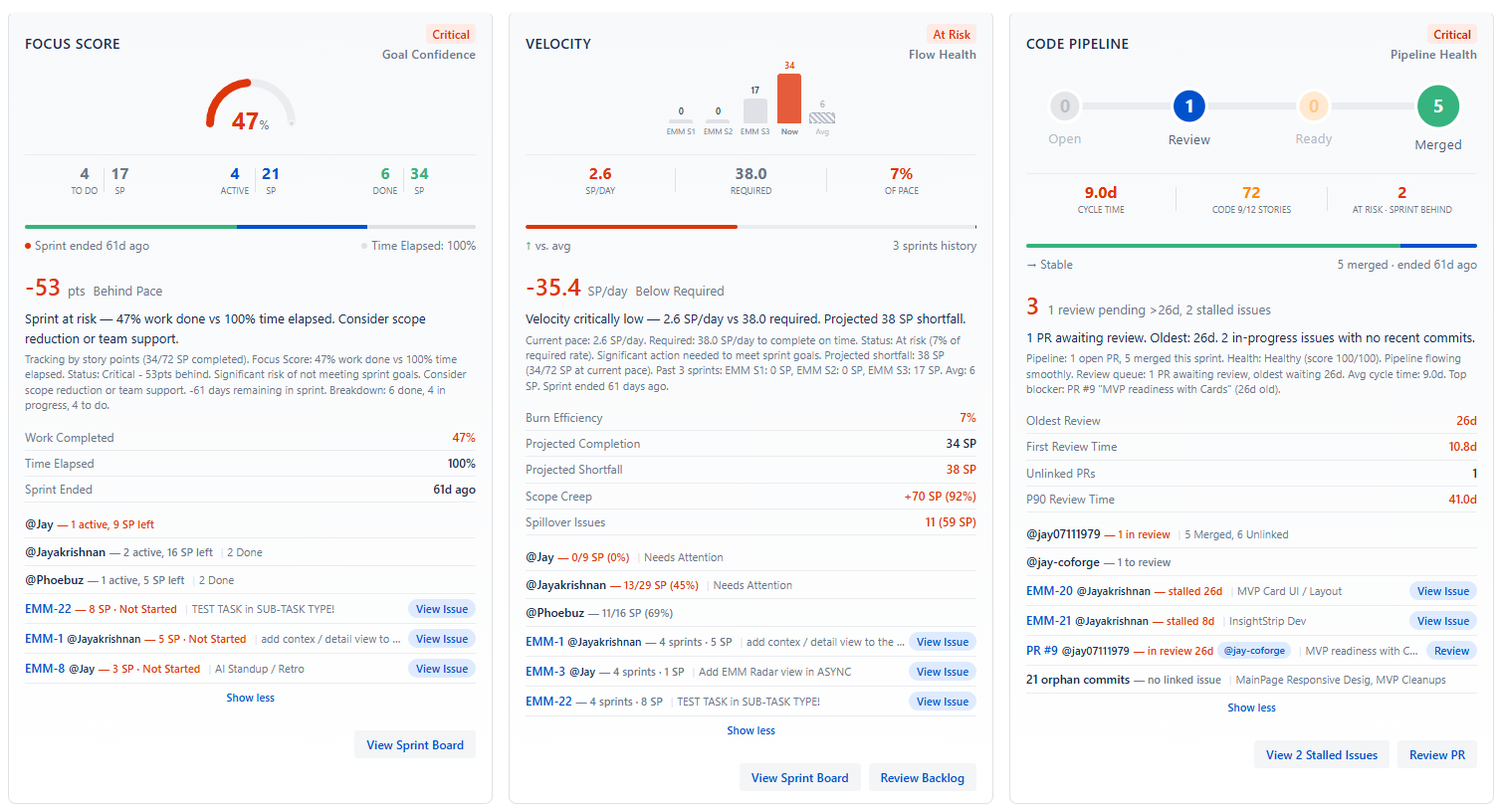
The Sprint Context zone sits at the top of the Engineering Pulse view. It displays real-time sprint health metrics in a three-card layout, adapting its content based on your project type.
Controls
- Exclude sub-tasks — Checkbox to toggle whether sub-tasks are included in metric calculations
- Collapse / Expand — Chevron button to collapse the entire Sprint Context zone. Your preference is saved automatically.
- Sprint Selector — When multiple active sprints exist, a dropdown lets you switch between individual sprints or view "All Active Sprints" in aggregate
Scrum Projects
For Scrum projects with active sprints, three cards are displayed side by side:
Focus Score Card
A circular gauge (0–100) measuring sprint focus — how well work aligns with sprint goals.
- Score — Large numerical display (e.g., "78")
- Status badge — AHEAD (green), ON-TRACK (green), BEHIND (orange), or CRITICAL (red)
- Work breakdown — Horizontal bars showing To Do, In Progress, and Done percentages with story point counts
- Issue counts — Number of issues per status category
- Sprint timing — Days remaining and sprint end date
Velocity Trend Card
Tracks your team's delivery velocity over recent sprints.
- Burn rate — Current story points per day vs. required rate to complete the sprint
- Mini bar chart — Last 1–3 sprint velocities with sprint names for comparison
- Projected completion — Percentage of committed work projected to be completed
- Status badge — EXCEEDING, ON PACE, BELOW PACE, or AT RISK
- Average velocity — Rolling average across recent sprints
- Projected shortfall — Story points at risk of not being completed (if applicable)
Code Pipeline Card
Visualizes the flow of pull requests through the review and merge pipeline.
- PR flow visualization — Chevron-style proportional bar showing Open → Review → Merge Ready → Merged stages with counts
- "Await You" indicator — Number of PRs in the review queue waiting for your review
- Oldest wait time — Hours the longest-waiting PR has been in review
- Stale PRs warning — Alert if any PRs have been open beyond the expected threshold
- Blocked issues — Count of Jira issues blocked by unmerged PRs
- Pipeline health badge — Overall pipeline status indicator
Other Project Types
ASYNC automatically detects your project type and adapts the Sprint Context cards accordingly:
| Project Type | Card 1 | Card 2 | Card 3 |
|---|---|---|---|
| Scrum | Focus Score | Velocity Trend | Code Pipeline |
| Kanban | WIP & Flow Health | Cycle Time | Throughput |
| Bug Tracking | Open Bugs & Severity | Resolution Rate | Avg Resolution Time |
| General | Tasks Completed | Completion Rate | Backlog Size |
Tip: ASYNC auto-detects your project type from Jira board configuration. Scrum boards with sprints show sprint-based metrics. Kanban boards show flow-based metrics. No manual configuration is needed.
Insights & Activity
Below the Sprint Context, the Insights section provides a command-level summary of your engineering activity, a narrative headline from AI synthesis, and detailed activity streams.
Command Strip
A compact row of 5 key metrics provides an at-a-glance summary:
- Completed Today — Items finished in the current session
- In Progress — Currently active items
- Blockers — Active blocking issues
- Sprint Velocity — Current sprint point rate
- Focus Score — Sprint alignment percentage
Each metric displays a large value, a descriptive label, and an optional delta indicator showing change direction.

Narrative Headline
When AI-Powered Insights are enabled, a narrative headline card appears below the command strip. This is an AI-synthesized summary highlighting the most important observation about your current sprint state (e.g., blockers, goal confidence, flow health).
Click Show details to expand additional context including blocker summaries, recommended actions, and confidence scores.
Activity Grid
The main content area below is split into two columns:
Overnight Activity (Left Column)
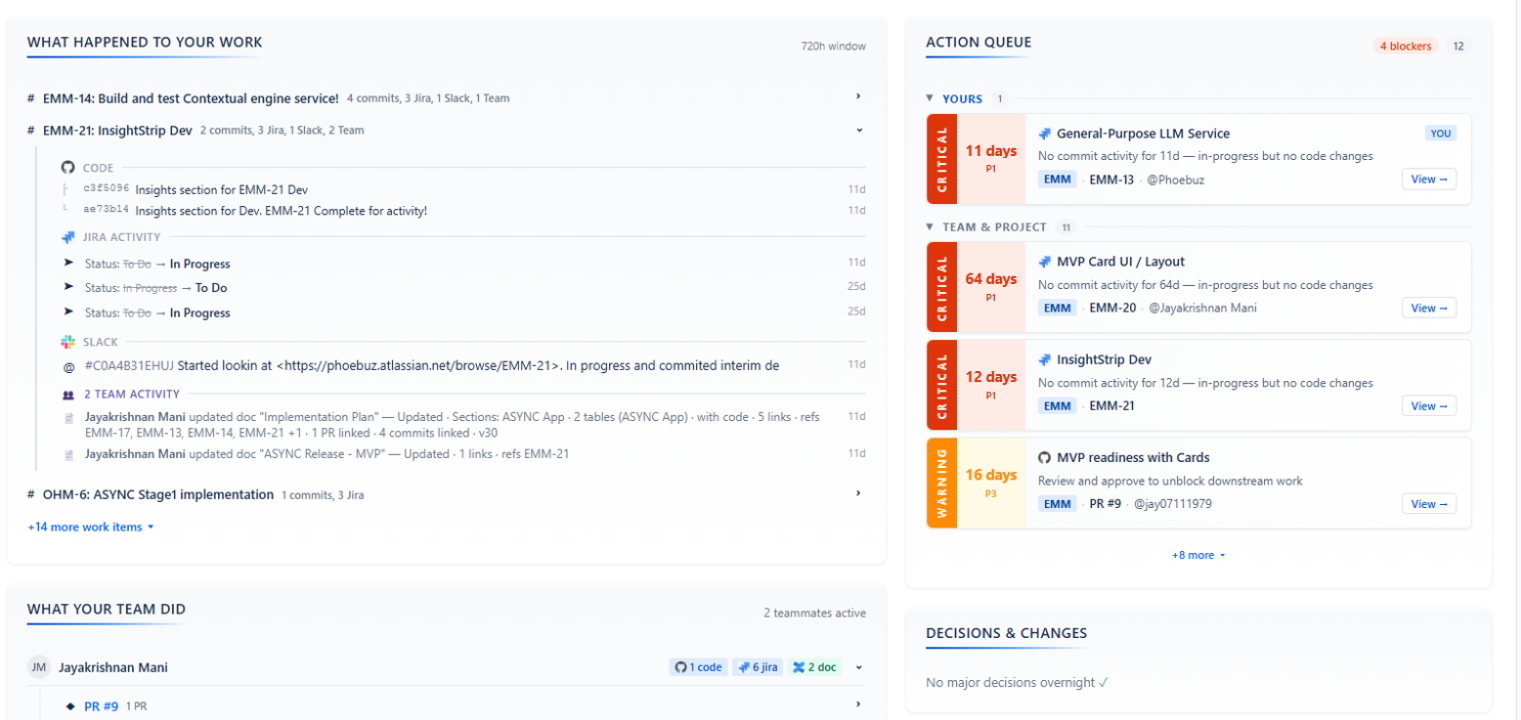
Shows what happened while you were away, organized into collapsible sections:
- Your Items — Issues assigned to you with status changes, comments, and updates
- Team Activity — Updates from your team members: completions, new assignments, and conversations
Each update shows an icon, description text, and a relative timestamp. During quiet periods, a green-tinted card displays: "It's been quiet. No significant activity in the last 24 hours."
Action Queue (Right Column)
A prioritized list of items that need your attention:
- Decisions Needed — PRs awaiting your decision (review, approve, request changes)
- Urgent Actions — P0/P1 priority items requiring immediate attention
Items are color-coded by priority: P0/Immediate (red), P1/Today (orange), P2/This Week (blue).
Intelligence Cards
ASYNC's intelligence engine continuously analyzes cross-tool signals and surfaces them as prioritized intelligence cards organized by severity. Cards are generated from correlated data across your project management, source control, messaging, meetings, and documentation tools.
Severity Tiers
Intelligence cards are grouped into three tiers using a progressive disclosure pattern:
| Tier | Purpose | Default Visible | Example |
|---|---|---|---|
| Critical Alerts | Problems detected now — fix immediately | 3 cards | PR review bottleneck, sprint velocity collapse, blocked dependency chain |
| Proactive Warnings | Prevent problems this week | 2 cards | Stale PRs approaching SLA, scope creep risk, under-reviewed code areas |
| Preventive Insights | Continuous monitoring & patterns | Collapsed | Documentation freshness, meeting-to-code ratio trends, team sentiment signals |
When a tier has no active cards, it displays an "All Clear!" message. Expand collapsed tiers by clicking the header or the "+ X more alerts..." banner.
Card Anatomy
Each intelligence card contains:
- Severity-colored header — Red (critical), orange (warning), or green (info) with an icon and title
- Metric — A large numerical value with label (e.g., "3 PRs pending review >24h")
- Description — 1–2 sentence explanation of what was detected and why it matters
- Detail items — Specific data points (affected issues, people, timelines)
- Historical context — For recurring issues: when it last occurred, what action was taken, and an effectiveness percentage showing how often that resolution works
- Action buttons — Context-specific CTAs (e.g., "Send Slack Reminder", "Escalate to EM", "View Logs")
Priority Scoring
Cards within each tier are ranked using a weighted score:
- Severity weight (40%) — How critical the issue is
- Recency weight (30%) — How recently the signal was detected
- Relevance weight (30%) — How directly it affects your work and sprint goals
How it works: Intelligence cards are generated by correlating signals across all your connected tools. For example, ASYNC might detect that a PR has been in review for 48 hours and the associated Jira issue is blocking a sprint goal and the reviewer was mentioned in a Slack thread asking about it — all combined into a single actionable "PR Review Bottleneck" card.
AI Features
ASYNC offers three AI-powered features accessible from the dashboard header. All three require Atlassian Rovo to be enabled on your Jira site. When Rovo is unavailable, clicking any AI button displays a modal explaining the requirement.
AI Standup
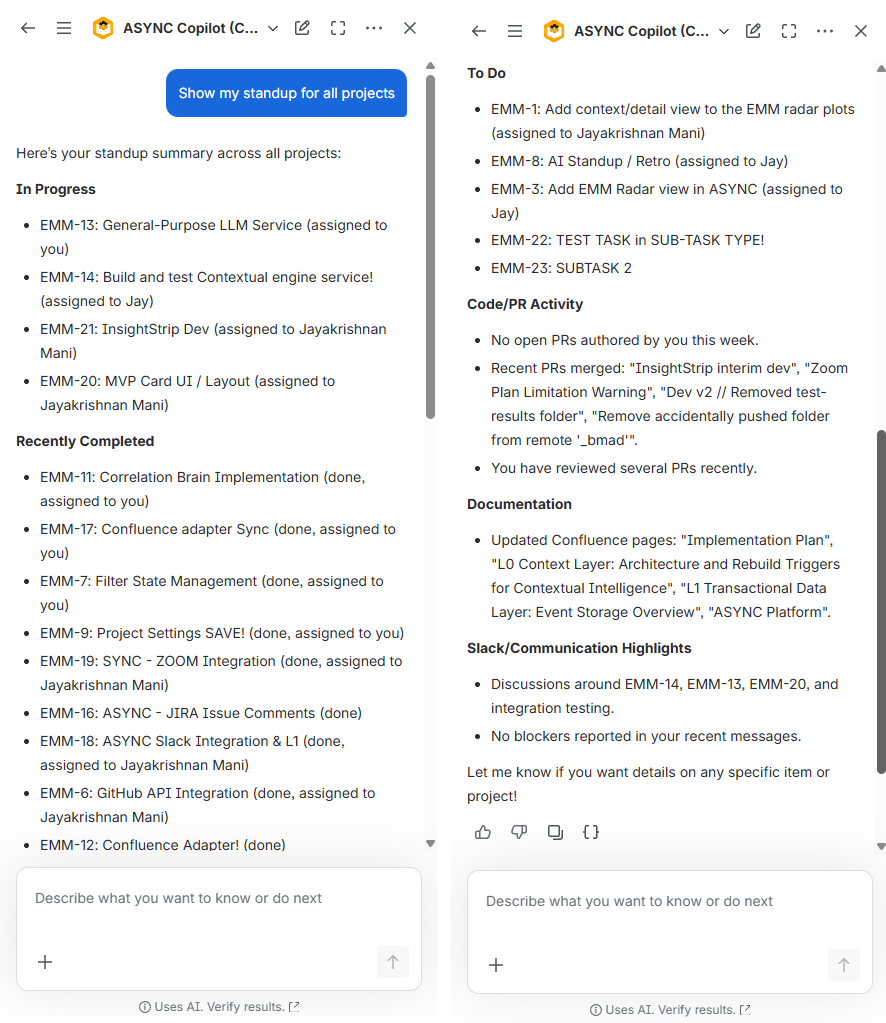
Click the Standup button in the header to generate a personalized AI standup summary. ASYNC Copilot opens in the Rovo sidebar and synthesizes your recent activity across all connected tools into a standup-ready briefing.
The standup is scoped to your current project filter — if you have a specific project selected, the standup focuses on that project. With "All Projects" selected, it covers everything.
What's included: The AI standup covers what you completed yesterday, what you're working on today, any blockers, and key context from your source control activity, team conversations, and meeting notes that are relevant to your current work.
AI Retrospective
The Retro button appears automatically when your active sprint is within 1 day of ending (or past its end date). Click it to generate an AI-powered sprint retrospective in the Copilot sidebar, drawing on the full sprint's cross-tool data.
ASYNC Copilot
Click Copilot to open the ASYNC Copilot AI assistant in the Rovo sidebar. The Copilot has full context of your engineering data and can answer questions, generate reports, and provide recommendations.
If you have a specific project selected in the filter, the Copilot session opens with that project's context pre-loaded.
Rovo required: All AI features require Atlassian Rovo, which is included with Jira Premium and Enterprise plans. If Rovo is not available, a modal explains how to enable it via admin.atlassian.com. The dashboard itself works fully without Rovo — only the Standup, Retro, and Copilot buttons are affected.
Filters & Views
The dashboard provides project and time range filters that control what data is displayed. Your filter preferences are automatically saved to the server and restored on your next visit.
Project Filter
The Projects dropdown in the header lets you scope the dashboard to specific projects or teams:
- All Projects — Aggregated view across all your configured projects (default)
- Individual projects — Filter to a single project by key (e.g., "ASYNC", "PLATFORM")
When you select a specific project, the Sprint Context zone filters to that project's active sprint, and all intelligence cards and insights are scoped to that project's data. The sprint selector syncs automatically — selecting a sprint sets the project filter, and vice versa.
Smart project list: The project dropdown includes both projects you're assigned to (from your Jira work) and all projects with synced ASYNC data. This ensures observers and managers can see projects even if they have no direct assignments.
Time Range Filter
Control the lookback window for insights and intelligence cards:
| Option | Default For | Tier Requirement |
|---|---|---|
| Current Sprint | Engineering Pulse | Free (14 days) |
| Last 24 Hours | — | Free |
| Last 7 Days | Strategic Pulse | Free |
| Last 30 Days | — | Standard |
| Last 90 Days | — | Premium |
| Custom Range | — | Tier-limited max span |
Time range options beyond your tier's data retention limit are not available. For example, "Last 30 Days" requires the Standard tier (30-day retention).
Submit Handoff
The Handoff button is the primary action on the dashboard. It triggers an immediate data sync across all your configured projects, generating fresh intelligence and handoff context for your team.
-
Click Submit Handoff
Open the Handoff dropdown and click Submit Handoff. The button shows a spinner and "Processing..." text while the sync runs. ASYNC queues each configured project sequentially.
-
Data is fetched and correlated
ASYNC pulls the latest data from Jira and all enabled integrations (source control, messaging, meetings, documentation). It then correlates signals across tools to generate intelligence.
-
Dashboard refreshes
Once the sync completes, the dashboard automatically refreshes with the latest sprint context, intelligence cards, and insights. The "Last updated" timestamp updates to reflect the fresh data.
When to use: Submit Handoff is ideal at the end of your work day to capture your completed work for the next team member's briefing. It's also useful before standup meetings to ensure the freshest data. For most teams, the automatic EOD sync handles this — manual handoffs are for on-demand freshness.
Sync Warning Banner
If ASYNC detects team members who appear in sync data but aren't configured in your team settings (discovered users), a dismissible warning banner appears at the top of the dashboard. Click Configure Teams to go to Project Settings → Timezone & Teams and add the missing members.
Dismissing the banner hides it for 24 hours. It reappears after 24 hours if the discovered users haven't been added to a team.
Empty & Setup States
The dashboard shows contextual empty states depending on your setup progress and project configuration:
Welcome to ASYNC (Gate 1)
ASYNC needs site admin configuration. Displays a settings icon and two buttons: Go to ASYNC Administration and Copy Message (for non-admin users to request setup). See Getting Started — Gate 1.
Configure a Project (Gate 2)
Admin settings are complete but no projects are configured. Lists up to 3 of your projects with direct Settings links, plus a Copy Message for Project Admin button. See Getting Started — Gate 2.
Waiting for Data (Gate 3)
Projects are configured but no sync has completed yet. Shows a spinner with Submit Handoff and Refresh Page buttons. See Getting Started — Gate 3.
Sync Not Completed
A specific project is configured but hasn't been synced yet. Displays: "Project X is configured but has not been synced yet." with a Submit Handoff button to trigger the first sync.
Project Not Enabled
A project isn't included in the ASYNC availability list. Displays: "Project X is not enabled in ASYNC administration settings." with guidance to contact the site administrator.
Setup Required
A project needs integration setup. Displays: "Project X needs integration setup." with a link to Project Settings.
No Active Sprint
For Scrum projects with no active sprint, displays a contextual message. Kanban and other project types show flow-appropriate empty states instead.
How Dashboard Data Works
The ASYNC dashboard uses a two-layer data architecture to provide both fast metrics and deep intelligence:
| Layer | What It Provides | Source |
|---|---|---|
| Real-Time Metrics | Sprint progress, focus score, velocity, code pipeline, timing — the quantitative cards in Sprint Context | Calculated live from Jira and source control data each time you load the dashboard |
| AI Intelligence | Narrative summaries, blocker detection, action recommendations, goal confidence, signals — the qualitative insights and intelligence cards | AI-synthesized from correlated cross-tool data during each sync |
Real-time metrics load first for instant visibility, then AI intelligence enriches the view with deeper synthesized insights. When AI-Powered Insights are disabled, the intelligence layer falls back to heuristic (rule-based) analysis rather than LLM synthesis.
Data freshness: A small loading indicator appears in the Sprint Context when AI intelligence is refreshing in the background. The dashboard auto-refreshes intelligence data every 5 minutes. You can force a full refresh using the Reload button or trigger fresh data with Submit Handoff.